Ollama 0.34: Local Models in ChatGPT Desktop
Ollama 0.34 (Sept 9 2026) routes ChatGPT Desktop requests to localhost:11434 - your prompts stay on-device. Setup, which model to use, and the privacy caveats.
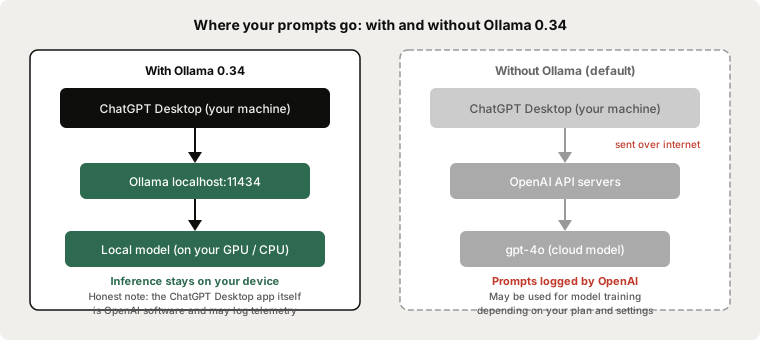
Ollama 0.34 (released 9 September 2026) adds official ChatGPT Desktop support - when you configure it through the Ollama macOS app, ChatGPT Desktop routes its queries to a model running at localhost:11434 on your machine rather than OpenAI's servers. The interface stays exactly the same; the inference moves on-device.
Here is what changed in 0.34, how the integration works, and which local model to pair with it.
Three things in Ollama 0.34
ChatGPT Desktop support (macOS): Configure once from the Ollama menu-bar app. ChatGPT Desktop then sends its requests to your local Ollama server instead of OpenAI's API endpoint. This works because ChatGPT Desktop already uses the OpenAI API wire format, and Ollama has exposed an OpenAI-compatible endpoint since v0.10 - the integration simply points the desktop client at localhost:11434.
Structured output improvement on Apple Silicon: Constrained-schema generation (where the model is forced to produce valid JSON or a fixed template) is now faster on M1 through M4 chips. This matters for any tool that sends structured prompts to Ollama, including Typilot's Polish and Notes commands, which use constrained output to keep responses in the right format.
OpenAI-compatible tool search and response compaction: Two API-level additions for developers building agents on top of local models. Tool search lets the model retrieve tool definitions that match the current prompt rather than passing the full tool list every time; response compaction reduces context length for long multi-turn sessions.
How the ChatGPT Desktop integration works
The integration is technically straightforward. Ollama already runs a local HTTP server on port 11434 that accepts OpenAI-format requests. ChatGPT Desktop uses that same format. Pointing the desktop client at localhost instead of api.openai.com re-routes inference without changing anything about the interface.
Setup on macOS:
- Update Ollama to 0.34 or later. If you already have Ollama installed, it updates itself automatically when the menu-bar app detects a new release; otherwise download the installer from ollama.com.
ollama --version
# should print: ollama version 0.34.0 or later
- Pull a local model if you do not already have one:
ollama pull qwen3:8b
- Click the Ollama menu-bar icon and choose "Use with ChatGPT Desktop". ChatGPT Desktop restarts with the local endpoint configured.
This is macOS only in the 0.34 release. Windows and Linux users can still use Ollama models through Open WebUI (ollama pull && docker run -d -p 3000:8080 ghcr.io/open-webui/open-webui:ollama), which provides a similar chat interface via the browser.
Privacy: what is and is not local
Inference through this integration is private. Your prompt leaves the ChatGPT Desktop UI, travels to localhost:11434, is processed by the local model on your GPU or CPU, and the response goes back to the interface. No text crosses the network.
The distinction to be honest about: ChatGPT Desktop is OpenAI's software. The app may report usage analytics, installation events, or telemetry to OpenAI independently of the inference path. If your goal is zero contact with OpenAI software, use Open WebUI, a local web interface, or curl directly:
curl http://localhost:11434/api/chat -d '{
  "model": "qwen3:8b",
  "messages": [{"role": "user", "content": "Draft a brief summary of this email."}]
}'
If your goal is private inference (your words do not reach OpenAI's models or servers for processing), the Ollama integration achieves that completely.
Your prompts are processed on-device at localhost:11434 and never sent to OpenAI's inference servers. The ChatGPT Desktop shell is OpenAI software and may log non-inference telemetry. For zero OpenAI contact, use Open WebUI or curl instead.
Which model to pair with ChatGPT Desktop
The best model depends on your hardware. ChatGPT Desktop with a local model is a general-purpose chat interface - the model choice matters more than the client.
| Model | Pull command | VRAM at Q4 | Best for |
|---|---|---|---|
| qwen3:8b | ollama pull qwen3:8b | ~5 GB | Daily writing and editing - fits 8+ GB GPU or 16 GB Mac |
| phi4:14b | ollama pull phi4:14b | ~10 GB | Writing quality step up - fits 12-16 GB VRAM |
| qwen3.8:27b | ollama pull qwen3.8:27b | ~16.8 GB | Best overall - needs 24 GB unified memory or VRAM |
| muse-glimmer:30b | ollama pull muse-glimmer:30b | ~17 GB | Agentic tasks and image input - needs 24 GB |
qwen3:8b is the right starting point for most machines. It fits on any GPU with 8 GB of VRAM and any Mac with 16 GB of unified memory, and it is comfortably faster than a cloud API call for writing tasks. For a full breakdown of what each model needs, see how much RAM to run a local LLM.
Structured output and Typilot
The Apple Silicon structured output improvement in 0.34 is the Ollama change most directly relevant to Typilot users. Typilot sends constrained-format instructions to the local Ollama model for its Polish, Rewrite, and Notes commands - 0.34 makes that constrained generation step faster on the Neural Engine.
If Typilot's AI responses feel slightly more responsive after updating Ollama, this is why. No configuration change is needed on the Typilot side: upgrade Ollama to 0.34, and the improvement is automatic for any model you have loaded.
Typilot and ChatGPT Desktop with a local model cover different jobs. ChatGPT Desktop is a conversation interface - you open it, type a question, and read the answer. Typilot works inside any text field you are already in (email, document, Slack, terminal) and responds to hotkey commands without switching context. Both connect to the same local Ollama server, so updating Ollama to 0.34 improves both at once.
The Ollama setup guide covers the initial configuration for Typilot. For a broader comparison of local models for writing and productivity, see best local LLMs for writing. For the privacy architecture of how audio and text stay on-device, see our security page.
The short version
Ollama 0.34 (September 9 2026) routes ChatGPT Desktop requests to a local model on your machine - same interface, private inference. Setup is one click on macOS from the Ollama menu-bar app. Your prompts do not reach OpenAI's servers during inference; the ChatGPT Desktop app itself is OpenAI software and may log non-inference telemetry, so for zero OpenAI contact use Open WebUI or curl directly. The same update improves structured output speed on Apple Silicon, which makes Typilot's Polish and Notes commands faster automatically. For most machines qwen3:8b (~5 GB, any 8+ GB GPU) is the right model to start with. Typilot connects to any running Ollama model automatically and puts rewrite, polish, and AI commands on a hotkey in every app on your machine - 3-day free trial, nothing leaves your device. The security page shows exactly what touches your hardware and what never does.
Common questions.
Does using Ollama with ChatGPT Desktop keep my prompts private?+
Your prompts are processed by a local model at localhost:11434 and are never sent to OpenAI's inference servers. However, ChatGPT Desktop is OpenAI's software and may log non-inference telemetry (usage events, analytics) independently of the inference path. If zero contact with OpenAI software is the goal, use Open WebUI or curl directly against localhost:11434 instead.
What is new in Ollama 0.34?+
Ollama 0.34 (released September 9, 2026) adds three things: official ChatGPT Desktop support on macOS (configure from the Ollama menu-bar app to route queries to a local model), faster structured output on Apple Silicon (constrained-schema generation is quicker on M1-M4 chips), and OpenAI-compatible tool search and response compaction for developer use cases.
Which model should I use with ChatGPT Desktop via Ollama?+
qwen3:8b (~5 GB at Q4) is the right starting point for most machines - it fits on any 8+ GB GPU or 16 GB Mac. If you have 24 GB of unified memory or VRAM, qwen3.8:27b (~16.8 GB) gives notably better quality. For agentic tasks and image input, muse-glimmer:30b (~17 GB) requires the same 24 GB. Pull with `ollama pull <model-name>` before configuring ChatGPT Desktop.
Does Ollama 0.34 improve Typilot performance?+
Yes, if you use Typilot on Apple Silicon. The structured output improvement in 0.34 makes constrained-schema generation faster on M1 through M4 chips. Typilot's Polish, Rewrite, and Notes commands send constrained prompts to the local Ollama model, so the improvement is automatic after updating Ollama - no configuration change is needed in Typilot.