Transcribe Zoom and Teams Meetings Offline
Transcribe Zoom and Teams meetings offline with local Whisper - no bot in the call, no audio upload, no internet needed after setup. Mac, Windows, and Linux.
Transcribing a Zoom or Microsoft Teams meeting locally means your operating system captures the audio directly from both sides of the call and routes it through an on-device Whisper model - no bot joins as a participant, no audio is uploaded to a vendor server, and the full transcript sits on your machine the moment the call ends. The workflow runs offline after a one-time model download and works on macOS, Windows, and Linux.
Here is how the two approaches differ, what the local path requires, and how to pick the right model.
Two ways to transcribe: bots vs local capture
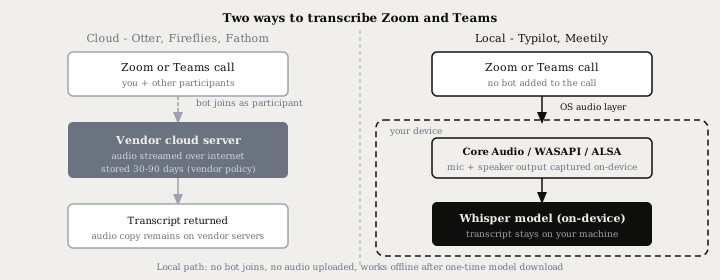
Most cloud transcription tools - Otter.ai, Fireflies.ai, Fathom, Granola - work by sending a bot account into your call. The bot joins as a visible participant, records the meeting on the vendor's infrastructure, and delivers a transcript by email or in-app. Your audio lives on their servers for the duration of that processing and, depending on the plan tier, for 30-90 days after.
The local alternative skips the participant model entirely. A system audio recorder hooks into the operating system's audio layer and captures the combined output of your speakers and microphone in real time. Zoom and Teams see only a normal call - no extra participant, no banner warning other attendees. The recording happens silently on your own machine.
What the local path requires
Three components cover the full pipeline:
- System audio capture. An app that hooks into the OS audio layer to record the mic and the system speaker output simultaneously. Typilot's meetings feature handles this automatically on macOS (Core Audio), Windows (WinAPI), and Linux (PulseAudio/ALSA).
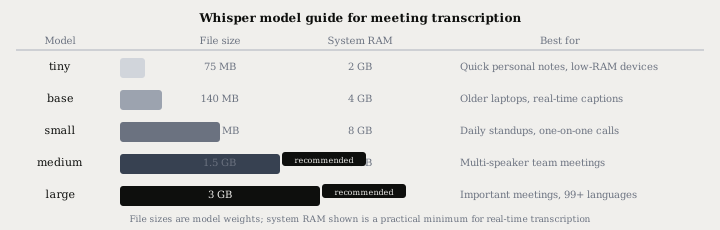
- A local Whisper model. Transcription runs entirely on your CPU or GPU. Whisper ships in five sizes from 75 MB to around 3 GB, and you download the model once - no internet connection is needed for inference after that.
- An optional local LLM. For automatic summaries and action items, a local model via Ollama processes the transcript without it leaving the device. The existing Ollama setup guide covers the installation in full.
Choosing a Whisper model for meetings
Real meeting audio - multiple speakers, background noise, overlapping speech - consistently scores 8-12% word error rate (WER) on large models, compared to the ~2.7% clean-benchmark figure you see quoted elsewhere. The Whisper accuracy post covers the gap in detail. Here the relevant question is which model size to start with given your hardware.
| Model | File size | System RAM | Best for |
|---|---|---|---|
| tiny | 75 MB | 2 GB | Quick personal notes, very low-RAM devices |
| base | 140 MB | 4 GB | Older laptops, real-time rough captions |
| small | 490 MB | 8 GB | Daily standups, one-on-one calls |
| medium | 1.5 GB | 8 GB | Multi-speaker team meetings |
| large-v3 | ~3 GB | 10 GB | Important meetings, 99+ languages, technical vocabulary |
The medium and large models produce similar real-world accuracy for meetings because both hit the same ceiling imposed by the audio conditions - noise, overlaps, and far-field microphones. Large earns its extra RAM by handling accented speech and rare technical vocabulary more reliably, and it covers 99+ languages versus the narrower set medium handles well.
Voice activity detection (VAD) matters as much as model size for meeting quality. VAD strips silence before audio reaches Whisper, removing the hallucination-on-silence problem where Whisper's decoder fabricates repeated phrases during quiet gaps. Most desktop tools that bundle Whisper for meetings enable VAD by default - check your app's settings if transcripts contain nonsensical filler phrases.
Platform notes
macOS. Core Audio exposes both the microphone and system output as recordable streams. On Apple Silicon (M1 or later) the medium and large Whisper models run in real time. On Intel Macs, the small model runs without lag; the medium model introduces a brief processing delay but still produces a usable transcript.
Windows. WASAPI loopback capture records all audio playing through your speakers, which includes the Zoom or Teams participant audio coming over the network. No administrator rights are required on Windows 10 or 11. The Whisper small model runs in real time on any CPU-only machine made after 2020.
Linux. PulseAudio exposes a monitor source for each output device; recording from that monitor captures system audio without any extra driver. On systems running PipeWire (default on most distributions since 2022), PipeWire's PulseAudio compatibility layer works identically. The small and medium models run on CPU; a dedicated NVIDIA GPU or Apple Silicon accelerates the large model.
Adding speaker labels
Whisper produces a flat text stream with no indication of who is speaking. On-device diarization adds the speaker attribution layer: the pipeline segments the audio by voice, assigns speaker IDs, and lets you rename each speaker once. Subsequent meetings with the same participants are labeled automatically without manual re-identification.
The speaker diarization guide covers how the on-device pipeline works and what accuracy to expect for calls with different numbers of participants.
Local vs cloud at a glance
| Local (Typilot) | Bot-based cloud (Otter, Fireflies) | |
|---|---|---|
| Bot joins the call | No | Yes - visible to all participants |
| Audio uploaded | Never | On every call |
| Works offline | Yes, after model download | No |
| Speaker labels | On-device diarization | Server-side |
| WER on real meetings | 8-12% (large model) | 7-10% (small cloud advantage) |
| Languages | 99+ via Whisper | Varies by tool |
| Pricing | One-time license | Per seat or per minute |
| Data retention | None | 30-90 days (vendor policy) |
Cloud tools carry a small accuracy edge on real meeting audio because they can run heavier models on server hardware. The gap is roughly 1-3 percentage points and closes further with a headset or a dedicated desk microphone. The structural difference is that a cloud tool can promise not to retain your audio; a local tool has no server to retain it on.
For more on Typilot's privacy model versus named rivals, the Otter compare page and Fireflies compare page walk through both products side by side.
The short version
Capturing Zoom or Teams audio locally requires no bot in the call - the OS audio layer (Core Audio, WASAPI, or ALSA) records both sides of the call silently on your machine, and a local Whisper model converts it to text without a network request. The medium model covers most team meetings on 8 GB of RAM; the large model handles technical vocabulary and non-English meetings better.
Typilot ships the complete pipeline - system audio capture, local Whisper transcription, on-device speaker diarization, and local AI summary via Ollama - on macOS, Windows, and Linux with a 3-day free trial and no audio upload, ever. The full architecture is on the security page. The general local meeting workflow is also covered in how to transcribe meetings locally.
Common questions.
Can you transcribe a Zoom meeting without uploading audio?+
Yes. A local system audio recorder hooks into the OS audio layer - Core Audio on macOS, WASAPI on Windows, ALSA on Linux - and captures both sides of the call on your device. The audio is processed by a local Whisper model and never transmitted anywhere. No bot joins the call as a participant and no audio reaches a vendor server.
Do I need a bot to join the call for meeting transcription?+
No. Bot-based tools such as Otter.ai and Fireflies.ai join your Zoom or Teams call as a visible participant and stream the audio to their cloud for processing. A local recorder bypasses that entirely by capturing the operating system audio output directly, so the call participant list is unchanged and nothing leaves your machine.
How accurate is local Whisper transcription for Zoom and Teams meetings?+
Whisper large-v3 achieves around 2.7% word error rate on clean benchmark audio but 8-12% on real meeting audio with multiple speakers and background noise. Commercial cloud services such as Otter and Fireflies post similar 7-10% real-world WER under the same conditions. Using a headset or a dedicated desk microphone is the single biggest lever on accuracy for any transcription approach, local or cloud.
Does offline Zoom and Teams transcription work on Windows?+
Yes. On Windows 10 and 11, WASAPI loopback capture records all audio playing through the speakers including the remote participant audio from Zoom or Teams. No administrator rights are required. After downloading a Whisper model, the entire pipeline runs offline - in airplane mode, on a corporate network with restricted outbound internet, or anywhere without connectivity.