How to Set a System-Wide Voice Typing Hotkey
Set a global voice typing hotkey on Windows, Mac, or Linux. Win+H and Fn Fn send audio to the cloud; here is the local, offline alternative.
A system-wide voice typing hotkey is a single key combination that activates speech recognition in whatever application has focus - a code editor, a browser, Slack, a terminal, anything. Windows 11 ships one built in (Win+H), and macOS lets you customise the Dictation shortcut in System Settings. Both route your audio through a cloud server. For offline voice typing that works in every app without a network connection, a third-party tool with a local Whisper model is the alternative - and you can bind it to whatever key combination you prefer.
Here is how each platform handles the global shortcut, what the built-in options actually do with your audio, and how to set up a local, offline replacement.
How a global hotkey works
A global hotkey works at the OS level: the voice tool registers a keyboard hook that fires before the keystroke reaches the active application. When you press the combination, the OS routes the event to the registered handler instead of passing it through to the text field. The handler opens the microphone, processes audio (locally or via a remote server), and injects the transcript at the cursor.
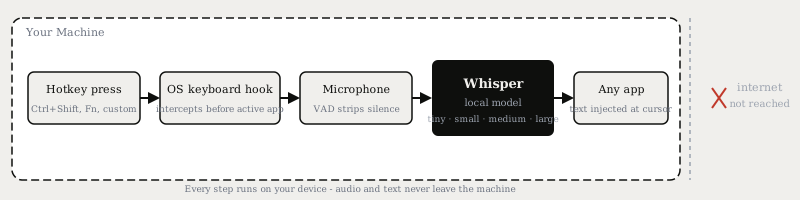
This is different from an in-app shortcut, which only works when one specific application has focus. A global hook works system-wide regardless of which window is active.
Built-in shortcuts by platform
| Platform | Default shortcut | Runs offline | Audio destination |
|---|---|---|---|
| Windows 11 | Win+H | No | Microsoft Azure |
| macOS Apple Silicon (M1+) | Fn Fn or mic key | Yes, on-device | Stays on device |
| macOS Intel | Fn Fn | No | Apple's servers |
| Linux | None built in | - | - |
Windows 11: Win+H
Hold the Windows key and press H in any text field to open the Voice Typing toolbar. It works in Notepad, Word, a browser, an email client - anywhere you can type. No setup is needed; the shortcut is active by default on Windows 11.
Every Win+H session sends your microphone audio to Microsoft Azure for transcription. The result comes back as text. There is no offline mode for Win+H.
macOS: Fn Fn or a custom key
macOS Dictation activates by double-pressing the Fn key, or by pressing the dedicated microphone key on newer MacBook keyboards (the F5 position on 2021 and later models). You can change the combination in System Settings > Keyboard > Dictation > Shortcut > Customise and assign any key or key combination.
Whether the audio stays on-device depends entirely on the chip:
- Apple Silicon (M1 and later): macOS downloads an on-device model and processes audio locally on the Neural Engine. No network connection is needed for dictation.
- Intel Macs: there is no on-device Dictation model. Audio is sent to Apple's servers on every session. There is no workaround within Apple's own ecosystem.
Linux: no built-in shortcut
Linux has no system-level voice typing shortcut out of the box. Every distro and desktop environment (GNOME, KDE, Wayland, X11) handles keyboard hooks differently, and there is no standardised speech API equivalent to Win+H or macOS Dictation. A third-party tool that registers a global hotkey and runs a local speech model is the only path.
What your audio actually does
The built-in shortcuts on Windows and macOS Intel route a stream of microphone audio to a remote server. That server transcribes the audio and returns text. Your voice data is processed outside your machine on every session.
Local Whisper tools keep the entire pipeline on your device. Audio captured by the microphone is processed in memory by the Whisper model, and the resulting text is injected at the cursor via the OS accessibility layer. Nothing is uploaded.
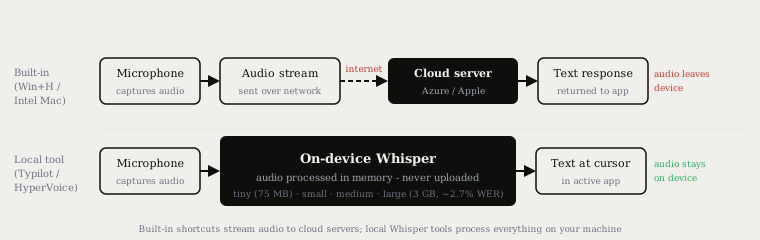
For anyone dictating in work applications - a private document, a company tool, a code file containing unreleased work - the distinction matters. The security page documents exactly what Typilot touches and what never leaves your machine.
Third-party tools with a configurable global hotkey
| Tool | Platforms | Default hotkey | Local model | Cost |
|---|---|---|---|---|
| Typilot | Mac, Windows, Linux | Ctrl+Shift (toggle), Fn (hold) | Whisper tiny-large | 3-day free trial |
| HyperVoice | Windows, Linux, Mac | Ctrl+Shift+Space | Local Whisper | Free 500 words/day; Pro $6.67/mo |
| Superwhisper | Mac, Windows, iOS | Configurable | Whisper + Parakeet | $8.49/mo or $249.99 lifetime |
| Spokenly | Mac, Windows, iPhone | Configurable | Whisper + Parakeet | Free (local) |
| Handy | Mac, Windows, Linux | Configurable | Whisper + Parakeet | Free, open source |
On Apple Silicon, the built-in Dictation shortcut is also private - processing stays on-device. The main reasons to prefer a third-party tool on Apple Silicon are cross-platform parity with Windows or Linux machines, AI commands on top of the transcript, and finer control over the hotkey combination.
Typilot's activation modes
Typilot has three activation modes in Settings > Voice, each suited to a different dictation style:
- Hold - press and hold the key (default: Fn) to record; release to commit. Best for short bursts where you want precise control over when transcription starts and ends.
- Toggle-VAD - press the shortcut once (default: Ctrl+Shift); voice activity detection (VAD) stops recording automatically when you pause for about half a second. Best for longer passages without needing to press anything again.
- Toggle-manual - press the shortcut to start, press again to stop. Best when you want explicit control over what gets committed, particularly in noisy environments where VAD might cut out early.
You can change the key in Settings > Voice > Activation shortcut to any combination supported by your OS. On Windows, Ctrl+Alt combinations and function keys both work. On Linux, Typilot uses raw device input; on Wayland, you may need to specify the keyboard device path in settings before the hook registers correctly.
To layer AI commands on top of the transcript - rewriting a sentence, fixing grammar, or translating to another language - connect Typilot to a local Ollama model. The Ollama setup guide covers model selection and the command prefixes (fix:, rew:, sum:).
Choosing a Whisper model for your hardware
The hotkey response time depends on which Whisper model you have selected. The model loads on the first press of the session and stays resident in memory.
| Whisper model | Disk / RAM | WER (clean English) | Typical load time |
|---|---|---|---|
| tiny | 75 MB / 1 GB | ~7% | Under 1 second |
| small | 490 MB / 2 GB | ~3.4% | 1-2 seconds |
| medium | 1.5 GB / 5 GB | ~2.9% | 2-3 seconds |
| large | 3 GB / 10 GB | ~2.7% | 3-5 seconds |
WER figures are benchmarks on LibriSpeech test-clean (studio-quality audio). Real-world dictation with background noise and accents typically lands in the 8-12% range across all model sizes. On Apple Silicon, the Metal GPU stack accelerates all four models significantly. On Intel Macs and Windows machines without a dedicated GPU, the small model is the practical default for live dictation - it transcribes faster than real-time and downloads in under 500 MB.
Getting started
Built-in (zero setup, platform-limited)
- Windows 11: press Win+H in any text field. Voice Typing toolbar opens immediately.
- macOS: open System Settings > Keyboard, scroll to Dictation, toggle it on, and set your shortcut. On Apple Silicon, download the on-device model when prompted.
Local Whisper with Typilot (Mac, Windows, Linux)
- Download Typilot and run the installer.
- The onboarding wizard downloads the tiny Whisper model and starts the local engine.
- On macOS, grant Accessibility permission when prompted. On Linux, check that your user has read access to the keyboard input device.
- Open Settings > Voice, choose your activation mode, and set the key combination.
- Press the hotkey in any app and start speaking.
For context on how Typilot compares to cloud-backed dictation tools, the Wispr Flow comparison and the Superwhisper comparison both cover the privacy and cost trade-offs in detail. For a broader look at offline options across all platforms, the offline speech-to-text guide covers accuracy benchmarks by model. For the Mac-specific Accessibility API setup and Apple Silicon vs Intel differences, the Mac dictation guide goes deeper.
The short version
Win+H on Windows and Fn Fn on macOS give you a system-wide voice typing shortcut with zero setup, but both send audio to a cloud server. For offline, private dictation in any app on Mac, Windows, or Linux, a local Whisper tool is the replacement: same global hotkey mechanic, same any-app coverage, and nothing leaves your machine. Typilot runs on all three platforms with a configurable hotkey and three activation modes - try it free for 3 days. The security page documents exactly what stays on your device and what never leaves it.
Common questions.
What is the keyboard shortcut for voice typing in Windows 11?+
The built-in shortcut is Win+H: hold the Windows key and press H in any text field to open the Voice Typing toolbar. Audio is sent to Microsoft Azure for processing. For offline voice typing with a customisable shortcut, a third-party tool such as Typilot runs Whisper locally with no network connection required.
How do I set a global voice typing hotkey on Mac?+
Go to System Settings > Keyboard > Dictation > Shortcut > Customise to assign any key combination. The default is double-pressing Fn or the dedicated microphone key. On Apple Silicon (M1 and later), processing is on-device. On Intel Macs, audio goes to Apple's servers. Third-party tools such as Typilot let you assign any hotkey and run Whisper locally on both chip types.
Can I use a system-wide voice typing hotkey on Linux?+
Linux has no built-in voice typing shortcut. Third-party tools that register a global keyboard hook and run a local speech model are the only option. Typilot uses raw device input on Linux (Wayland requires a keyboard device path in settings); the Whisper model and text injection then run entirely on your machine.
Why does the built-in voice typing shortcut send audio to the cloud?+
Win+H on Windows and Apple Dictation on Intel Macs both stream microphone audio to remote servers (Microsoft Azure and Apple respectively) for transcription. Only on-device models - Apple Silicon Neural Engine with the downloaded Dictation model, or a local Whisper model in a third-party app - keep audio on the device.