AI Typing Assistant for Windows
Typilot brings local Whisper dictation, 27 AI commands, and system-wide autocomplete to any Windows app - no audio upload, no cloud subscription, 3-day free trial.
The most capable AI typing assistant for Windows does two things the built-in tools do not: it works in every application without exceptions, and it processes your audio and text entirely on your own machine. Typilot brings local Whisper dictation and 27 AI command shortcuts to any Windows app - your code editor, email client, browser, or terminal - with nothing uploaded and no cloud subscription required. A 3-day free trial is available at typilot.com/download.
Here is how to choose the right tool and get started.
What Windows already gives you
Windows 11 ships with two relevant built-in tools.
Windows Voice Typing (Win+H) - press Win+H in any text field to open the voice typing toolbar. It processes audio in Microsoft's cloud and achieves 85-90% accuracy on clear conversational English. Copilot+ PCs (2025 and later) get an improved on-device pipeline with automatic punctuation; standard Windows 11 machines use the older cloud-only transcription pipeline. Either way, if you are offline or on a restricted corporate network, it will not work. There is no user-editable vocabulary, so technical jargon and brand names are frequently misrecognised.
Microsoft Copilot (Win+C) - opens a sidebar assistant for drafting text, summarising content, and answering questions. It operates in its own panel and does not inject responses into whatever application you have open. Useful for standalone tasks, not for in-app shortcuts while you are writing.
Both tools require an active internet connection and neither gives you AI command shortcuts inside the application you are already working in.
What a full AI typing assistant adds on Windows
The category has expanded well beyond simple voice-to-text. A full on-device AI assistant for Windows covers three distinct workflows:
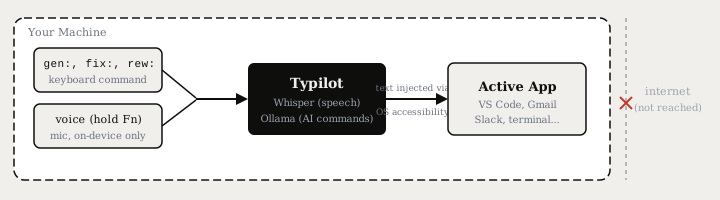
Voice dictation in any app - hold a key, speak, release; the transcribed text appears at the cursor in your active application. No panel to open, no switching focus. Typilot's voice mode supports three activation styles: hold-to-talk (hold Fn, release to commit), toggle with voice activity detection (press once, stops automatically on silence), and toggle-manual (press to start, press again to stop). All three use local Whisper on your machine - nothing is uploaded.
AI command shortcuts - type a short prefix (gen:, fix:, rew:, sum:, exp:) followed by your instruction and press the send key. Typilot reads the surrounding context, routes it to a local AI model via Ollama, and injects the result directly at the cursor. Twenty-seven built-in command prefixes cover generation, editing, translation, summarisation, and more. They work in VS Code, Gmail, Slack, Notion, or any other app where you can type.
System-wide AI autocomplete - inline ghost-text completions, in any application, powered by a small local model. The debounce and per-app exclusions are configurable from Settings so the suggestions appear only where you want them.
How local compares to built-in and cloud tools
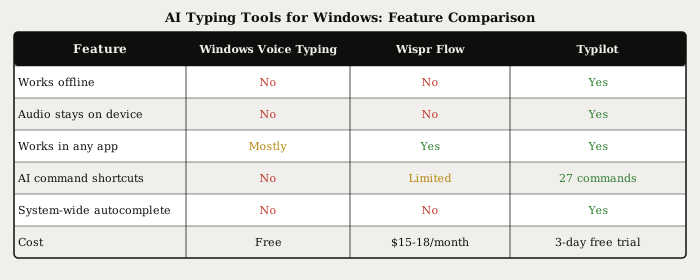
| Windows Voice Typing | Wispr Flow | Typilot | |
|---|---|---|---|
| Works offline | No | No | Yes (after model download) |
| Audio stays on your device | No | No | Yes - on-device only |
| Works in every app | Mostly | Yes | Yes |
| AI command shortcuts | No | Limited | 27 built-in commands |
| System-wide autocomplete | No | No | Yes |
| Price | Free | $15-18/month | 3-day free trial |
| Minimum hardware | Any | Any | 8 GB RAM (tiny model) |
Windows Voice Typing sends audio to Microsoft's cloud on every request. Standard Windows 11 machines use a cloud-only pipeline; the on-device upgrade only ships on Copilot+ PCs from 2025. Typilot runs local Whisper regardless of your hardware - the audio never leaves your machine.
Installing Typilot on Windows
Setup takes three steps:
- Download and run the installer from typilot.com/download.
- Install Ollama - the local AI runtime that Typilot talks to over
localhost:11434. - On first launch, the onboarding wizard walks you through downloading an AI model and choosing a Whisper model size for voice mode.
The keyboard shortcut for the command palette is Ctrl+Space by default. The full shortcut reference is in the keyboard shortcuts guide. Voice mode defaults to hold-to-talk (Fn key) and can be switched to toggle modes from Settings > Voice.
Text injection uses the Windows accessibility layer - the same mechanism screen readers use to interact with applications. This is why Typilot works across practically every app without a browser extension or app-specific plugin: the active application receives text exactly as if you had typed it.
Whisper model sizes and Windows hardware
Whisper model choice determines both accuracy and the hardware you need. On Windows laptops without a discrete GPU, the small model is the practical sweet spot: 3.4% word error rate on clean English, real-time processing, and under 500 MB download.
| Whisper model | RAM | WER (clean English) | Practical on |
|---|---|---|---|
| tiny | 1 GB | ~7% | Any laptop, 8 GB RAM |
| base | 1 GB | ~5% | Any laptop, 8 GB RAM |
| small | 2 GB | ~3.4% | Any laptop, 16 GB RAM |
| medium | 5 GB | ~2.9% | 16 GB RAM or discrete GPU |
| large | 10 GB | ~2.7% | 32 GB RAM or 8+ GB VRAM |
WER figures are benchmarks on clean English audio (LibriSpeech test-clean). Real-world dictation with background noise or accents typically lands in the 8-12% range even on the large model.
The AI command and autocomplete features use a separate Ollama model. Typilot's default is qwen2.5:0.5b - a model small enough to run on any hardware that still produces coherent rewrites and summaries. The Ollama setup guide covers how to switch to a larger model if your machine has headroom.
What "free" actually means
Windows Voice Typing is genuinely free with no trial period. Typilot offers a 3-day free trial with full functionality - all 27 commands, voice mode, and AI autocomplete are active from day one. After the trial, a paid licence is required. There is no monthly subscription tier; you pay once.
For users who want a no-cost local Whisper tool, Handy and Murmur are open-source options that run Whisper locally on Windows. Handy supports both Whisper and Parakeet models and is cross-platform; Murmur is a lightweight Windows app available on the Microsoft Store. Neither includes the AI command system or autocomplete, and both require manual setup compared to Typilot's onboarding wizard.
The short version
Windows Voice Typing is free and works in most apps, but it requires an internet connection and stops at transcription - no AI commands, no autocomplete, no offline use. Cloud tools like Wispr Flow add the command layer but introduce a monthly subscription and send your audio to their servers. Typilot runs the full stack locally on your Windows machine: Whisper dictation, 27 AI command shortcuts, and system-wide autocomplete, with audio that never leaves the device.
Download the 3-day free trial at /download. The full data flow - what runs on your machine and what Typilot never touches - is on the security page. For a deeper look at the local-first architecture, why Typilot is local-first covers the design decisions behind building an assistant that processes nothing in the cloud.
Common questions.
Is there a free AI typing assistant for Windows?+
Windows Voice Typing (Win+H) is free and built into Windows 11, but it requires an internet connection and only does transcription with no AI commands or autocomplete. Typilot offers a 3-day free trial with full functionality including voice dictation, 27 AI command shortcuts, and system-wide autocomplete - all running locally on your machine.
Does an AI typing assistant for Windows work offline?+
It depends on the tool. Windows Voice Typing and cloud services like Wispr Flow require an active internet connection on every request. Typilot uses local Whisper for speech recognition and a local Ollama model for AI commands, so it works fully offline after the one-time model download - in airplane mode, on a corporate network with restricted outbound access, or anywhere with no connectivity.
How do I install an AI typing assistant on Windows?+
Download Typilot from typilot.com/download and run through the onboarding wizard to download a Whisper model and an AI model - the local AI engine ships inside the installer, so there is nothing else to set up. The wizard takes around five minutes. After setup, press Ctrl+Space in any app to activate the command palette, or hold the Fn key to dictate by voice.
What hardware do I need to run local AI dictation on Windows?+
The Whisper tiny and base models run on any Windows laptop with 8 GB RAM and introduce under 500 ms of latency. The small model (3.4% WER) needs 2 GB RAM and runs in real time on any machine made after 2020. The medium model (2.9% WER) benefits from 16 GB RAM or a dedicated GPU; the large model (2.7% WER) is best on hardware with 32 GB RAM or 8+ GB of GPU VRAM.